My staff and I incorporate Google into our daily practice because Google contains wonderful tools that are not only unmatched by competitors, they're actually FREE! It seems word is out. As a result, my staff and I are thrilled to have been invited to present at the Google offices in Manhattan to share how and why the schools we are connected with are getting Googley.
Check out this presentation below to see for yourself.
We'll also be leading a breakout session to discuss how and why schools are using Google Chrome and Chromebooks. You can see what we'll be discussing at this link: http://oetmanhattan.wikispaces.com/Google+PD
As part of the breakout session, participants will be checking out the Chrome Education Webstore to discover and share an App they might find useful for learning.
They'll share via the Google Presentation below.
If you're not using Google to support learning, the ideas shared here from others may very well inspire you. Are you (or do you plan to be) using Google in these ways or others? If so, please share your experience.
You have read this article Google /
Google App Marketplace /
Google Chrome /
Google Chrome Extensions /
Google Chrome Netbook /
Google for Educators /
Google in Education
with the title Google Chrome. You can bookmark this page URL http://benncam.blogspot.com/2012/02/getting-googley-in-nyc.html. Thanks!
Whether you’re a classroom teacher or home educating family, you and the young people around you can collaborate with and connect to the world using Google tools. I’ve used numerous Google tools to connect to help myself and others connect to the world. I love using tools like Docs, Hangout, Goggles, Translate, Earth and more!
To learn more, watch this video overview and share with others who are interested in using Google’s free tools to connect with the world. Then read about my fave five with a description of how to use each.
I love creating Google docs with others who share my passions and interests. I simply begin by creating a doc, spreadsheet, form, drawing, or presentation and then I reach out to others who are interested in the topic via Twitter and Facebook. Before I know it, people from around the Globe are working together to create a unique resource that is useful to all who share our interest. Below is a description of each type of Google doc.
Docs - Create and share documents on the web and access them from any internet enabled device. The familiar desktop feel makes collaborative editing easy.
Presentations - All the tools you need to create beautiful presentations, combined with the sharing and collaborative editing features only offered on the web.
Spreadsheets - Create and share spreadsheets online. Google spreadsheets makes it easy to track budgets, run financial calculations, track data and more.
Drawings - Work together to create drawings and diagrams in Google Docs and insert them into your documents, spreadsheets, presentations and web pages.
Forms - Collect information by creating a form in Google Docs. All the great features you expect from a form creation tool with none of the upgrade costs. It's free.
Whether you’re home in your pajamas, in the classroom, or out and about, Google video hangouts let you bring up to 9 people together from around the world directly to you. You can act out a play, do a musical jam, or be the star performer to up to 9 other sites in the world. It’s the next best thing to everyone being there and you don’t have to deal with commuting or airport security. Here are some resources via Larry Ferlazzo that may be helpful for those looking to hangout.
Google Translate allows us to finally be able to communicate with others even if we don’t speak the same language via text or spoken word. This can be a terrific tool to use when Skyping with other young people. Simply talk in your language and Google Translate will translate your speech to text and speak in the language you choose. This is also a great tool if you are connecting with another class or student who has a blog or website. Google translate lets you read that site in your native language. Another way I LOVE using Google translate is to find out about historical events through the perspective of those who speak another language. How did the French capture the French revolution or how did those whose native tongue is Spanish record the Spanish Inquisition? Wikipedia is a great tool to look up historical facts. Newspapers are ideal for current events. To follow are three ways to use Google Translate.
You can find out about anything in the world with Google Goggles. Goggles lets you snap a photo of what you see to find more information about products, landmarks or famous paintings, and even solve Sudoku puzzles. Imagine taking a fieldtrip where you can use Google Goggles to give you more information about what you are seeing. Imagine going to a museum and using Goggles to learn more about the artwork in front of you.
5 - Google Earth
There are a number of ways to go globetrotting right from your laptop with Google Earth. Below are some of my favorites.
From discovering shipwrecks in the ocean to zooming into 3D cities around the world, you can explore an expansive library of tours, videos, and imagery that have been created by Google Earth and supporting partners.
Google Earth can help you bring a world of information alive foryour students. It can be used with all grade levels, and the possibilities are endless withyour imagination! Students can use Google Earth to explore topics like the progress of human civilization, thegrowth of cities, theimpact of civilization on the natural environment, and the impact of natural disasters likeHurricane Katrina. Teachers can use Google Earth demos to get their students excited about geography beyond the static map, or use different Google Earth layers to studytransportation, demographics,economics, and in specific local or exotic contexts.
Google Lit Trips are free downloadable files that mark the journeys of characters from famous literature on the surface of Google Earth. At each location along the journey there are placemarks with pop-up windows containing a variety of resources including relevant media, thought provoking discussion starters, and links to supplementary information about “real world” references made in that particular portion of the story.
Google Earth heroes salutes these individuals and shares these wonderful stories in the hopes that they will inspire even more initiatives to help make the world a better place.
These are my five fave tools, but there's a whole lot more. You can check them out here and when you do I hope you'll come up with some more great ideas for creating a Global Communication Center with Google.
You have read this article Google /
Google Chrome /
Google Earth /
Google for Educators /
google hangout /
Google in Education /
Google+
with the title Google Chrome. You can bookmark this page URL http://benncam.blogspot.com/2012/02/the-innovative-educators-five-fave-ways.html. Thanks!
I've been using Google Chrome for the past several months for two reasons. It's efficient and faaast! How fast? Faster than any other browser I've tried on the PC or MAC. Along the way, I've discovered Google Chrome Extensions in the App Marketplace which is a fantastic bonus. There are a ton of free apps that are great for productivity and education.
Here are my must-have productivity apps.
Screen Capture Capture visible content of a tab, a region of a web page, or the whole page.
Dictionary Double-click any word to view its definition in a small pop-up bubble. View the complete definition of any word or phrase using the toolbar dictionary.
Scratchpad Scratchpad lets you take notes while you browse, and syncs notes to Google Docs. Notes are found in your "Scratchpad" folder in Google Docs. Works fully offline, so you can take notes even when you aren't connected.
Aviary Aviary has a suite of products that enable you to edit images, create music, edit audio, and more.
Picnik Picnik is photo editing awesomeness! There's a complete set of tools from basic fixes to professional quality effects and cosmetic touch ups.
Here are free education apps that innovative educators might appreciate.
BioDigital Human The BioDigital Human is a 3D platform that simplifies the understanding of anatomy, disease and treatments. Interactive tools for exploring, dissecting, and sharing custom views, combined with detailed medical descriptions provide an unprecedented new visual format to learn about your body.
Typing Club Learn how to type using all 10 fingers with this free app! No registration or installation required.
Element or Elementals Element is a detailed, fully-offline periodic table built for power users who need to find information quickly and want to have it at their fingertips. Elementals is a fun periodic table where every element has its own personality.
Learn Spanish with Qué Onda Spanish • Videos by profession Spanish instructor explaining the details of the language • Interactive lessons with dynamic quizzing algorithm proven to making learning more efficient • High-quality audio by native Spanish speakers • Game-based conjugation trainer that makes the most difficult aspect of Spanish fun • Community question and answer forum
If you aren't using Google Chrome yet, you may want to give it a try. Not only is it efficient and fast, but it has lotsa neat, free and useful apps.
You have read this article Google App Marketplace /
Google Chrome /
Google Chrome Extensions /
Google for Educators /
Google in Education
with the title Google Chrome. You can bookmark this page URL http://benncam.blogspot.com/2011/12/the-innovative-educator-picks-for.html. Thanks!

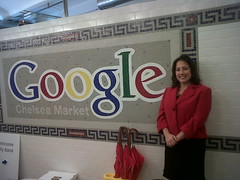 My staff and I incorporate Google into our daily practice because Google contains wonderful tools that are not only unmatched by competitors, they're actually FREE! It seems word is out. As a result, my staff and I are thrilled to have been invited to present at the Google offices in Manhattan to share how and why the schools we are connected with are getting Googley.


